
Automations: what to schedule on a commissioning job, and how to write the prompt
An automation is a message the assistant runs for you on a schedule, into a chat you can open. Seven recipes commissioning teams can set up today, the exact prompts, what comes back, and what an unattended run is not allowed to do.
Most of the writing on a commissioning job is the same writing every week. Monday, the open issues sorted by age. Every evening, what moved today. Friday, the look-ahead and the documents still missing before next week's tests. None of it is hard. All of it gets skipped the week the site is busy, which is the week it mattered.
Cx Assistant now has Automations: a message the assistant runs for you on a schedule, as a normal chat turn, while you are on site. You write the message once, pick when it runs, and each run lands in a chat you can open, with a notification carrying the summary. This article is about what to schedule and how to write the message so the run comes back useful.
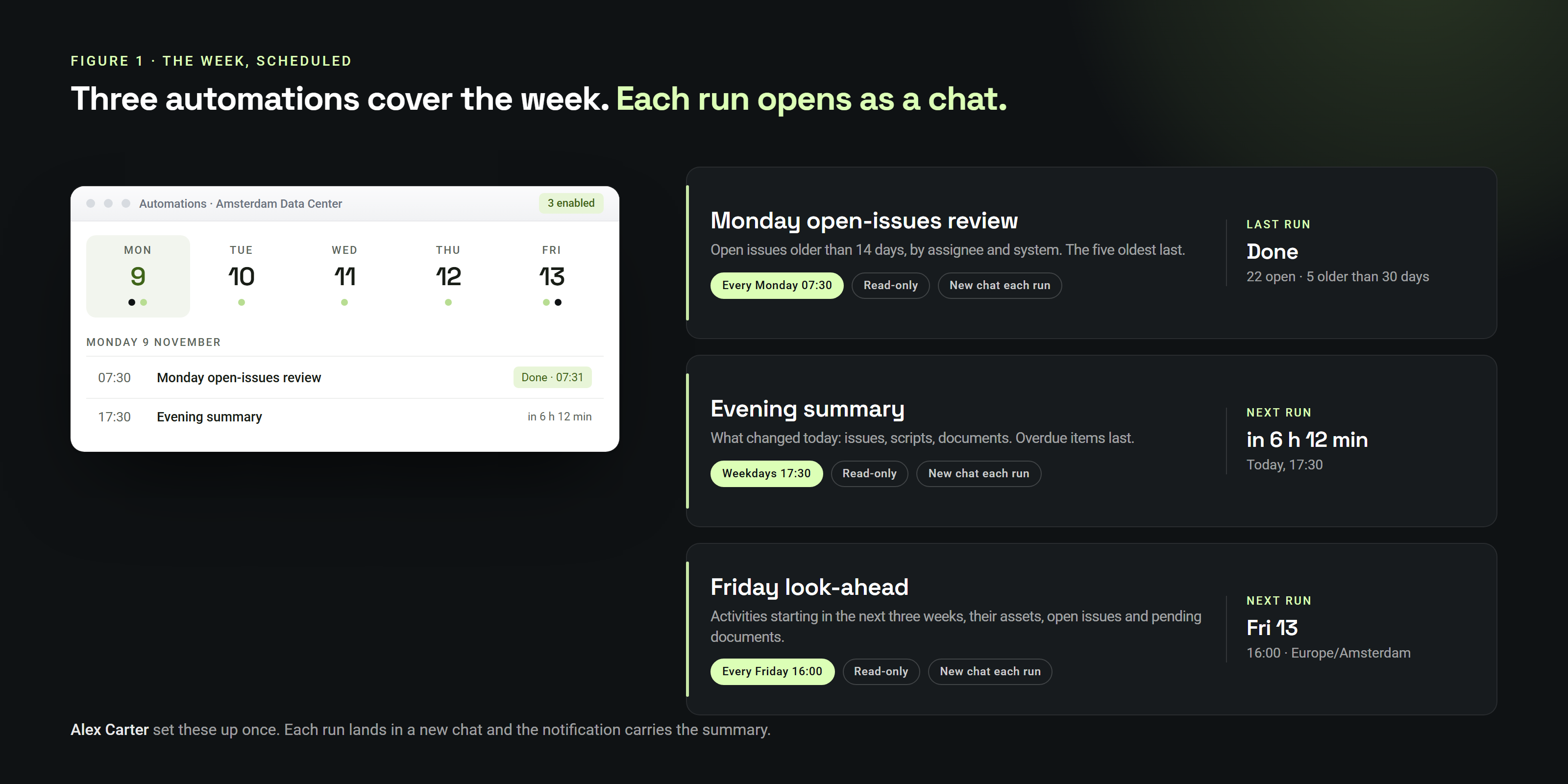 Three automations cover the week: the Monday review, the evening summary, the Friday look-ahead. Each run opens as a chat.
What an automation is
An automation has four parts. A name. A prompt, which is the message the assistant receives on every run, written exactly as you would type it in the chat. A schedule: once at a given time, every day, weekdays, one day a week, or every so many minutes, with an optional last day. And a target: a fresh chat for every run, or one chat of yours that wakes up each time and keeps its context.
Each run is a chat turn like any other. It can search your project, read documents, open the issues log, read the tracker and the planner, search the web if you leave that on, and read the services you have connected. Where it differs from a chat you type into: nobody is there to answer a question, so the assistant is told not to ask one. It decides, states its assumption in a line, does the work, and ends with a summary you read in the notification.
The automation belongs to you alone. It runs with your access, your connected services and your limits. Project members never see your automations. A project on the automation is a filter for the run, not a share.
Why these seven
The recipes below are not invented. They are the recurring records the commissioning process already asks for. ASHRAE Standard 202 requires a formal issues and resolution log, with each open item tied to a responsible party, kept open until the item is resolved or the owner accepts it, and carried into the final report. The GSA's commissioning guide has construction-phase meetings walk through previous action items, outstanding issues, the schedule and new issues. Navy facilities meetings review a three-week look-ahead. Pre-functional checklists come before functional tests in most owner specifications. Daily reports are valued because they are written the same day.
An automation does not replace any of those records. It prepares the reading for them, on the day, from what is already in your project, so the meeting starts from a list instead of from memory.
Seven recipes
Each recipe gives the schedule, the mode, where the run lands, and the prompt as you would paste it. Change the names and numbers to your project. Every prompt below has been written to need no answer from you.
1. The Monday open-issues review
Schedule: every Monday at 07:30. Mode: read-only. Target: a new chat per run. Project: the one you are on.
List the open issues in this project that are older than 14 days. Group them by assignee, then by system. For each issue give the number, the title, the days open and the date of the last comment. Finish with the five oldest issues and who owns each one. Do not create or change anything.
What comes back: a chat with the list, grouped as asked, and a notification with the summary before the meeting starts. Read-only means the run can look at everything you can look at and change nothing: no issue created, no comment added, no document edited. For an ageing review that is the right setting.
2. The evening summary
Schedule: weekdays at 17:30. Mode: read-only. Target: a new chat per run.
Summarise what changed in this project today: issues created, issues closed, comments on open issues, scripts completed or signed, documents uploaded or replaced in the tracker. Group by system. Keep it short. End with anything that became overdue today.
This is not the daily site report; that record is yours to write, from the site. It is the part of the report that lives in the project already, pulled together while you drive home. If you keep a daily report in Word, the next recipe is how the text gets there.
3. Drafts for the people who owe you something
Schedule: weekdays at 08:00. Mode: changes allowed, email sending off. Target: a new chat per run. Needs: Outlook or Gmail connected in Settings.
For each assignee with issues in this project overdue by more than 7 days, draft one email in my mailbox. Subject: "Open commissioning items – [project name]". Body: their overdue issues as a list with number, title, due date and days overdue, then one line asking for a date per item. Leave every message as a draft. Do not send anything.
The drafts are in your mailbox when you open it. Nothing has left. Sending is a separate decision: in a normal chat the assistant shows you a card before any email goes out, and in an automation it refuses to send unless you switched Allow sending email on for that automation. With the switch off, the run drafts and the send waits for you. With it on, the run may send from your connected Outlook mailbox to the recipients the prompt names, and every message sent is listed in the summary. Gmail connections draft but never send, in either mode.
4. Test readiness, the evening before
Schedule: once, the evening before the witnessed test. Mode: read-only. Target: a new chat.
Tomorrow we witness the SAT on AHU-03. Check: (1) the SAT script for AHU-03 exists and which steps are still unanswered; (2) the open issues on AHU-03 and the equipment under it; (3) the documents the tracker still shows as pending for AHU-03, such as the pre-functional checklist, the factory test report and the control sequence. Report the three lists and finish with a one-line verdict: ready, or what blocks it.
Owner specifications put pre-functional checklists and start-up before any functional test. This run is the check that the paperwork agrees with the plan, done by someone who does not get tired at 19:00. A once-only automation runs at the time you set and then switches itself off; it stays in your list so you can run it again by hand next week with the asset name changed.
5. The document register, aged
Schedule: every Friday at 15:00. Mode: read-only. Target: a new chat per run.
From the documentation tracker of this project, list every required document that is still pending or rejected and past its due date. Group by discipline, then by supplier. For each: the asset, the document type, the due date, the days late and the last status change. End with the three suppliers holding the most late documents.
The tracker already knows what is required for each asset and what has arrived. The run is a reading of it, on Friday, with the ageing done. If the register is kept in a spreadsheet instead, this recipe is a reason to move it.
6. The Friday look-ahead
Schedule: every Friday at 16:00. Mode: read-only. Target: a new chat per run.
From the planner, list the activities that start in the next three weeks, week by week, with their target milestones. For each activity name the assets it covers and the open issues on those assets. Flag any activity whose assets still have pending documents in the tracker. Keep it to one screen.
A three-week look-ahead is the standard length in construction meeting formats, and it is what the planner holds. The run joins three things you would otherwise open in three tabs: the plan, the issues, the register.
7. A chat that wakes up and continues
Schedule: weekdays at 07:00, with a last day set. Mode: changes allowed, web on if the review needs it. Target: this chat.
Continue the O&M manual review in this chat. Take the next three manuals from the list we made above, check each one against the handover requirements in the specification section we discussed, and add the findings to the running table in the same format. Note the manuals you have reviewed so you do not repeat them. Stop when the list is finished.
The other recipes start a fresh chat every time, which is the easiest to review afterwards. This one targets the chat you are already in: every run is one more message in that conversation, so the assistant keeps the list, the table and the decisions you made together. You can ask for this from inside the chat: "every weekday at 07:00 until the 14th, continue this review" is enough for the assistant to set it up, and it confirms what it created. A last day means the automation ends quietly on that date; it stays in your list with no next run, and you can extend it or delete it.
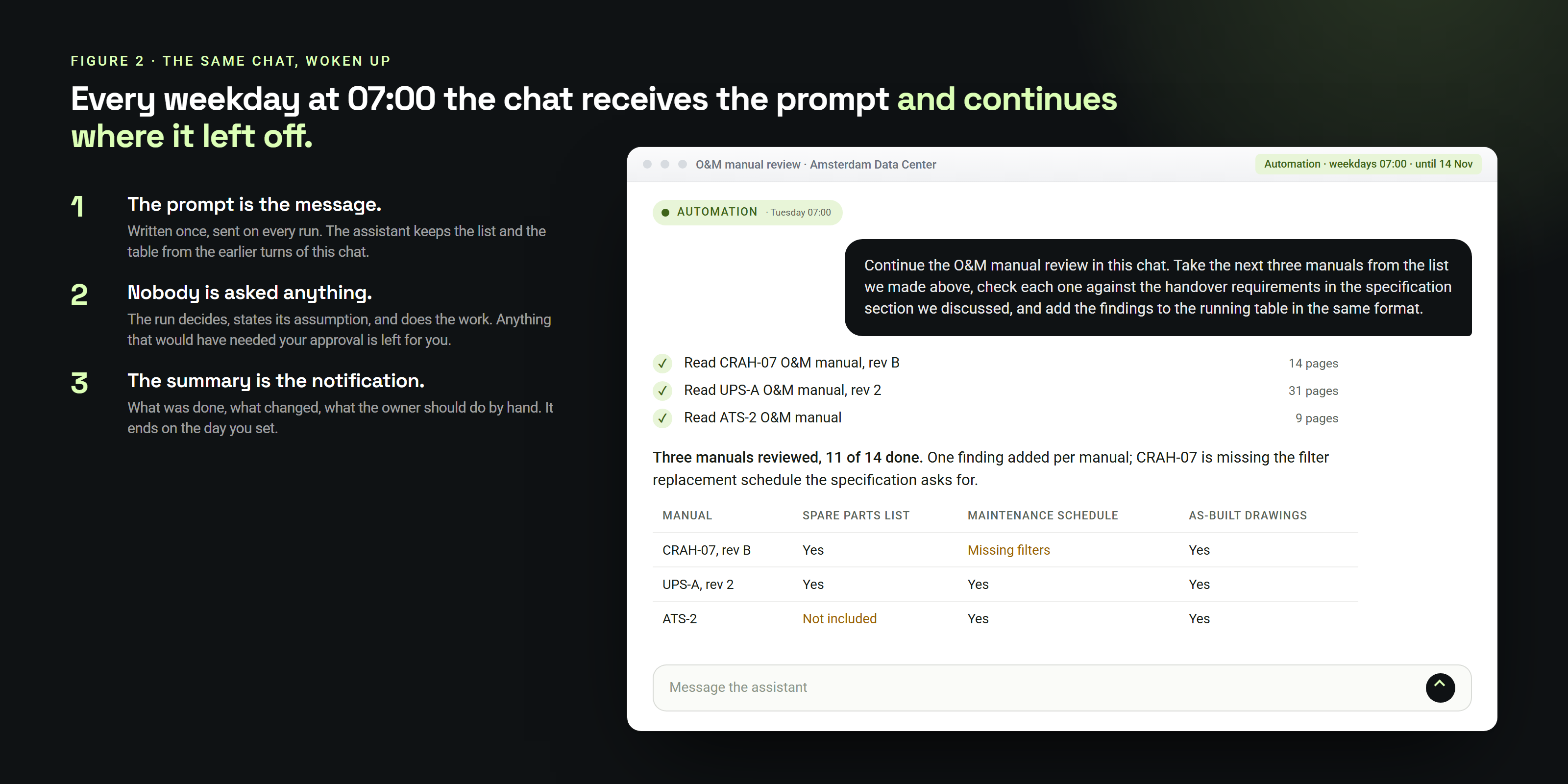 The same chat, woken up on a weekday morning. The message is the prompt; the summary is what the notification carries.
How to create one
Two ways. On the web app, Automations in the sidebar opens a page with a month calendar, the day's agenda and your list; New automation asks for the name, the prompt, the schedule, where it runs, and the mode. The page shows the next run counting down, and a Runs tab lists every firing with its status, how long it took, its summary and a link to the chat it worked in. Run now fires one immediately so you can see what comes back before you trust the schedule.
Or ask in any chat. "Every Monday at 07:30, list the open issues older than 14 days in a new chat, read-only" is enough; the assistant creates the automation from the conversation, and it appears in your list marked as set up from a chat. From the chat you can also pause, resume, reschedule, rewrite the prompt, or delete one.
On the phone, the Automations screen shows the list with the countdown, the runs and their summaries, and lets you run one now, pause, resume or delete it. Creating and editing happen on the web or by asking the assistant.
When a run does not finish
A run ends in one of a few states, and the runs log says which. Done is the normal case: the assistant answered. Stopped early means it hit a limit before finishing; open the chat and you find where it got to, with its task list. A run that stops at a limit is told to continue, up to a number of extra turns you set, three by default. Failed means the run could not start or errored. Three failures in a row pause the automation and you get a notification saying so.
Two more states exist for runs that never started. Skipped: you reached the daily number of runs. Missed: the time slot was more than six hours old by the time it could run, for example after a service stop, and running a stale morning report at midnight helps nobody. If the chat an automation targets is busy with a live run, or you already have two runs going, the slot simply waits its turn inside that six-hour window.
An automation pauses on its own when the ground under it moves: you lose access to its project, the project is gone, or the chat it targets no longer exists. The page says why, and Resume is one click once you have fixed the cause.
What a run is not allowed to do
This is the part worth reading twice. Because nobody is present, an unattended run is cut down compared with a chat you type into.
- It never deletes: no assets, files, tracker rows, planner activities, script items, layout elements or dashboard widgets.
- It never changes who is in a project, what is shared, or where files live. No invitations, no removals, no moving or copying files between folders.
- It never sends email unless you switched that on for that automation. Draft, yes. Send, only with your explicit setting, and only from Outlook.
- It never touches your computer or your browser. The desktop and browser actions available in a normal chat are not offered.
- It never reads your other conversations, and it cannot create or change automations. Scheduling is yours.
- Anything that would have shown you an approval card in a normal chat is refused, not held. The run notes what it would have done and carries on, and the summary tells you so you can do it by hand.
- Read-only takes this further: the run can search and read but creates and edits nothing.
There are also plain limits today, and they are deliberately conservative while the feature is new.
- Up to 10 automations per account, and up to 20 runs per day across all of them; further slots that day are recorded as skipped.
- Two runs at the same time per account; a third waits, and is recorded as missed if it is still waiting six hours later.
- Intervals from 15 minutes to 7 days. Times follow your time zone, including clock changes.
- Prompts up to 8,000 characters. The runs log is kept for six months; the chats a run worked in are kept like any other chat.
- No triggers yet. An automation runs on a schedule only; it does not fire when an email arrives or an issue changes.
Writing a prompt for a run nobody watches
The prompts above share a shape, and the shape is what makes them work without you.
- Name the scope. "In this project", "on AHU-03", "from the tracker". The run has your whole access; tell it where to look.
- Say what to produce, and in what order. Grouped by assignee, then system. Number, title, days open. The run cannot ask which you meant.
- State the thresholds. 14 days. 7 days overdue. The next three weeks. A number in the prompt is a number in the result.
- Say what not to do. "Do not create or change anything" in a read-only run is belt and braces, and costs nothing. "Leave every message as a draft" is the line that keeps a draft a draft.
- End with the one line you want first. "Finish with the five oldest." "Finish with ready, or what blocks it." That line becomes the notification.
- Run it once by hand. Read the chat. Adjust the words. Then let the schedule take it.
Write it the way you would brief a colleague who starts at seven, before you arrive, and who will not phone you. That is exactly who the run is.
Sources
The recurring records named in this article, and where they come from. Product behaviour is described from the current release of Cx Assistant; limits are the defaults at the time of writing and may change.
- ASHRAE — ANSI/ASHRAE/IES Standard 202, Addendum a (2017): the issues and resolution log, tracked by the commissioning provider, including issues raised by the owner and the design team.
- Consulting-Specifying Engineer — Commissioning buildings, systems using ASHRAE Standard 202: the formal issues and resolution log, responsibility per item, open until resolved or accepted by the owner, carried into the final commissioning report.
- GSA — Building Commissioning Guide, construction-phase meetings (mirror): previous action items, outstanding issues, schedule review, new issues.
- NAVFAC — Five Part Meeting Format: the three-week look-ahead schedule review.
- University of Maryland, Baltimore — 019113 General Commissioning Requirements (2020): pre-functional checklists and start-up before functional performance tests.
- ISO 24359-1 — Building commissioning process planning, Part 1: New buildings: the issues and resolution log and pre-functional checklists in the international process standard.
- CIBSE — Commissioning Code M: Commissioning Management (2022): programming commissioning activities and handover documentation in the UK code.
- Oregon State University — Project Management Manual 509.5, Daily reports and University of Delaware DCT — The inspector's daily diary: daily records written the same day.
See it in the product
The modules this post is about, each with its own page and guide.
Want to see Cx Assistant in action?
Explore how commissioning teams manage assets, issues, and documentation — in one place.
Start for free