
Every document, every version.
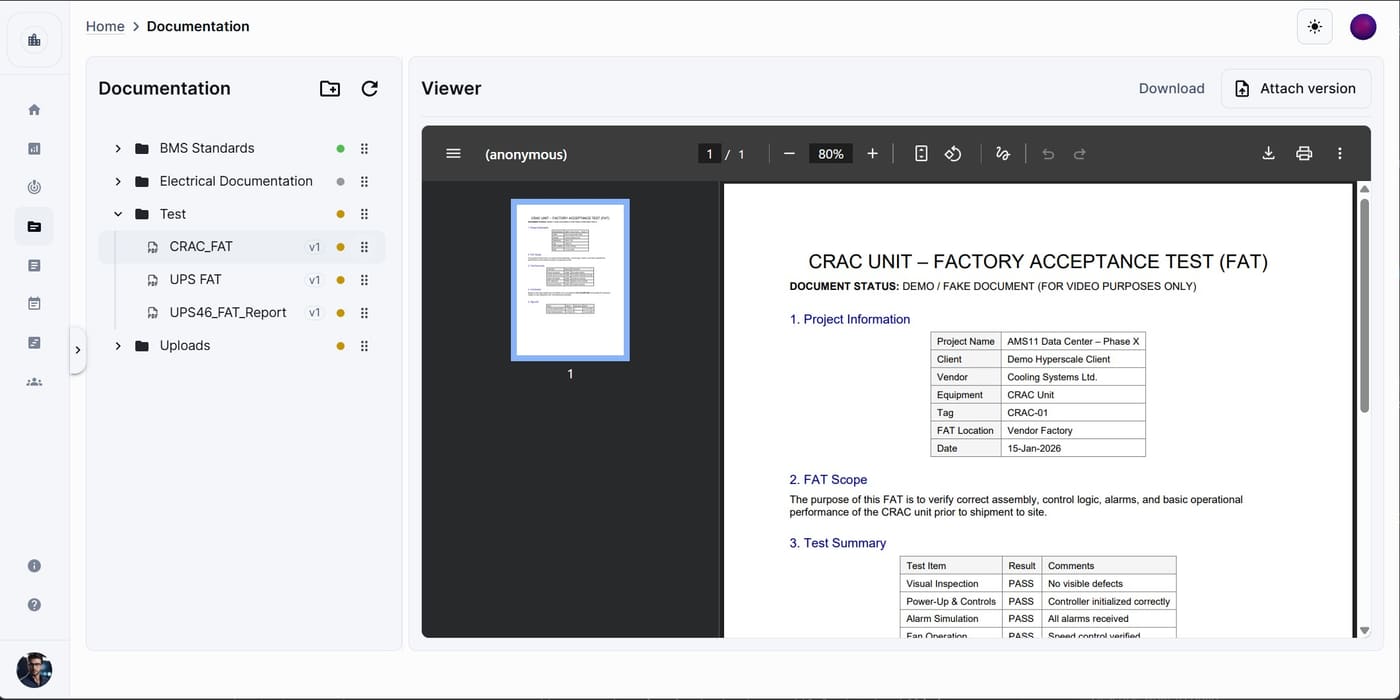
Documentation is the project's file manager. It holds every document, drawing, photo and folder, and it is where scripts and templates live. Upload FAT reports, certificates and drawings, organise them into folders, preview and annotate them, keep their versions, send them to review and download them.
Available on
app.cx-assistant.com
What you can do
Upload files and whole folders
Pick files, upload a folder with its structure, or drag from your computer anywhere onto the page. An upload panel shows the progress per file. On the phone, pick a file from Files, iCloud, Google Drive or another provider.
Versions instead of duplicates
Uploading a file with the same name into the same place adds a new version. Version history lists every version with its size and date, and you can open an earlier one.
Preview and annotate PDFs and images
PDFs and images open in a viewer with continuous scroll, zoom and a thumbnail rail. In edit mode, draw rectangles, arrows, highlights, text and pins on the document; the Markups tab shows how many annotations each document has.
Filter by type, approval and review
Filter by file type, approval status or review status, or pick one review to see exactly the files in it. Search by name, sort by name, date, size or type, and switch between a grid and a list.
Send to review and download as ZIP
Select several files and send them to review or download them as a ZIP from the bulk action bar. Folder downloads build in the background and a tray shows when they are ready.
Readable by the assistant
After upload, each file is prepared for search and for the assistant. The AI tab shows the title, description, keywords, language and page count it extracted, and when the assistant cites a page, the link lands on that page of the viewer.
How a team uses it
- 1
The document controller sets up the folder tree by phase, discipline or asset type and uploads the vendor packs.
- 2
Engineers upload test reports and photos from the web or the phone; a re-upload becomes a new version.
- 3
Reviewers mark up the PDF in the viewer, and the files go to review from the bulk action bar.
- 4
Everyone filters by approval or review status to see what is approved, pending or rejected.
- 5
At handover, the folders download as a ZIP for the client pack.
In more detail
Views in the sidebar
All files, Recent, Starred, Mine, Chat files, Templates and Trash. Files attached in a chat with the assistant become real documents under Chat files, so you can find them again or move them into the project folders.
Trash and restore
Deleted items go to Trash and can be restored to their original place; a deleted folder comes back with its contents. Before a deletion, an impact summary shows what it affects.
Live with the team
Avatars show who else is viewing the same folder, and teammates' uploads, renames, moves and deletions appear without reloading the page.
On the phone
Browse the folder tree, search across the whole project, upload a file with live progress, open images with pinch-to-zoom and view the version history of any document.
The full guide, step by step
The same help the app shows, published here: every screen, every field, every permission.
Questions
Upload it with the same name into the same folder and it becomes the latest version. Earlier versions stay in the version history and can be opened.
Yes. Open it in the viewer, switch to edit mode and draw with rectangle, ellipse, arrow, line, freehand, highlight, text and pin, with a colour picker, stroke width and undo.
Yes. Choose Download on a folder or on a selection and a ZIP is built in the background. The Downloads tray shows the progress and the download starts when it is ready.
Ready to see your next project clearly?
Bring assets, issues, documents, and schedule into one place — and put an AI assistant that knows your project next to every engineer.
No credit card required · Web, mobile & Office