
Cx Assistant, right inside Word and Excel.
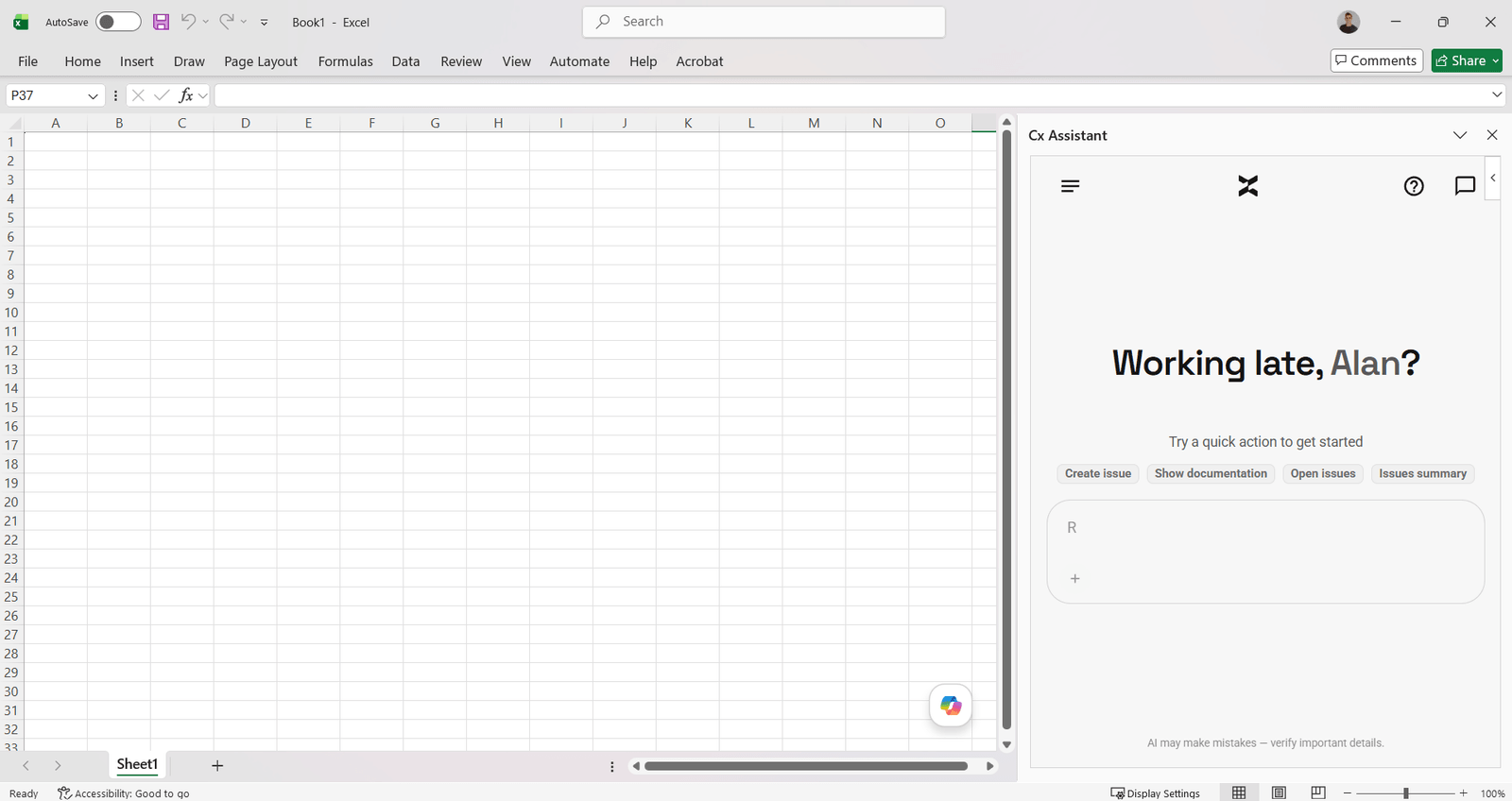
Each add-in opens the assistant in a task pane next to your document or workbook. You sign in with the same account you use on the web, ask about the issues, assets and documentation in your project, and let the assistant write into the open file: sections, tables and charts in Word, values, formulas, sheets and charts in Excel.
Available on
app.cx-assistant.com
What you can do
Write the report from live project data
Ask Word for a commissioning completion report for a system with its closed issues, responsible parties and closure dates, and the assistant inserts headings, paragraphs, tables, lists and charts, at the end of the document or after the paragraph you name. It reads the data at the time of your request.
Review every edit as tracked changes
In Word's Review mode, edits to existing text arrive as tracked changes and new content arrives as a proposal in a box titled Cx Assistant proposal. You accept or reject, keep or discard, one by one or with Accept all and Reject all. The assistant never accepts or rejects its own changes.
Act on Word comments
Leave a comment on a section with your instruction, then ask "Take action on the comment in the document": the assistant reads it, makes the edit and resolves the comment. It can also list comments, add one anchored to text it finds, reply, resolve or delete.
Fill a workbook from the project
Pull all open issues into a sheet as a formatted table sorted by priority, build an asset register on a new sheet, write values and formulas, format the header row, auto-fit the columns and insert a chart next to the table. Around 25 chart types are supported, inserted as native Excel charts linked to your data.
Create issues from rows in a sheet
"Read the punch list on Sheet1 and create issues for the open rows" turns a spreadsheet register into project issues. The assistant reads values and formulas, searches cells, runs find and replace across a sheet and handles merged cells on the way.
Sources you can open in the pane
When an answer draws on project data, citation chips sit under the reply. Click one and the issue or asset opens in an edit dialog inside the pane, and a document opens in a viewer, so you check the record and update it without leaving Word or Excel.
How a team uses it
- 1
An engineer installs the add-in from the Office Add-ins store: Insert, Add-ins, search "Cx Assistant", Add. An Open Cx Assistant button appears on the Home tab, and the pane signs in with the same email and password as the web app.
- 2
They pick the project in the selector at the top of the history panel; the pane remembers the choice next time.
- 3
In Word: "Create a commissioning completion report for System 3B. Include all closed issues, responsible parties and closure dates." The report lands as tracked changes and proposals they accept or reject.
- 4
In Excel: "Pull all open issues into Sheet1 as a formatted table, sorted by priority", then "Insert a doughnut chart of issues by priority next to the table".
- 5
A citation chip under the reply opens the issue in the pane, where they change its status and carry on with the document.
In more detail
Requirements
The add-ins work in Office on the web and in Office desktop on Windows and Mac with a Microsoft 365 subscription. The Excel add-in needs Excel API 1.4 or newer and the Word add-in Word API 1.3 or newer; comments, footnotes and tracked-changes review in Word need Word API 1.4 or newer, and on older builds edits are applied directly. There is no PowerPoint add-in yet.
How edits land
Word has three review modes: Review, the default, with tracked changes and proposals; Direct, applied at once with an Undo button in the chat; and Preview, which shows each change before it is made. Excel applies edits straight to the workbook. In either add-in, the approval mode in the composer can be set to Ask for edits so every write shows a card first, while reading never asks.
Without a project
The add-ins work with no project at all. In personal mode the assistant works on the open document or workbook and on your own My Workspace files: reading, writing, formatting, tables and charts, summarising a file you attach, engineering questions and web search. Issues, RFIs, assets and project documents need a project, which is created on the web app.
Chats stay with the app they started in
The history panel in Word lists Word chats, and Excel lists Excel chats; web and mobile conversations live in their own apps. Everything the assistant does with project data is checked against your permissions in the active project, so it can never see or change more than your account can.
The full guide, step by step
The same help the app shows, published here: every screen, every field, every permission.
Questions
In Review mode, the default in Word, edits to existing text are tracked changes and new content is a proposal you keep or discard, so nothing becomes part of the document until you decide. In Direct mode a change is applied at once and the chat shows an Undo button under it, and Word's own Undo works as usual.
Yes. In Excel, charts are inserted as native Excel chart objects linked to data ranges in your workbook. In Word, a chart is inserted as a picture with a description for screen readers and an optional numbered caption; to change one, ask the assistant to replace it.
Yes. With no project the pane opens in personal mode, where the assistant works on the open file and your My Workspace files. To work with issues, RFIs, assets and project documents, create a project on the web app or accept a colleague's invitation, then pick it in the selector.
Ready to see your next project clearly?
Bring assets, issues, documents, and schedule into one place — and put an AI assistant that knows your project next to every engineer.
No credit card required · Web, mobile & Office